Delivery in 2-5 days (US) | Free shipping over $10
Pickup currently not available

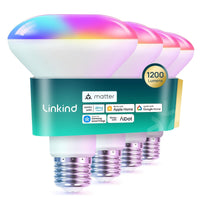
Linkind Matter Smart RGBTW Light Bulbs BR30 - 650lm


Pickup currently not available
 Delivery in 2-5 days (US) | Free shipping over $10
Pickup currently not available
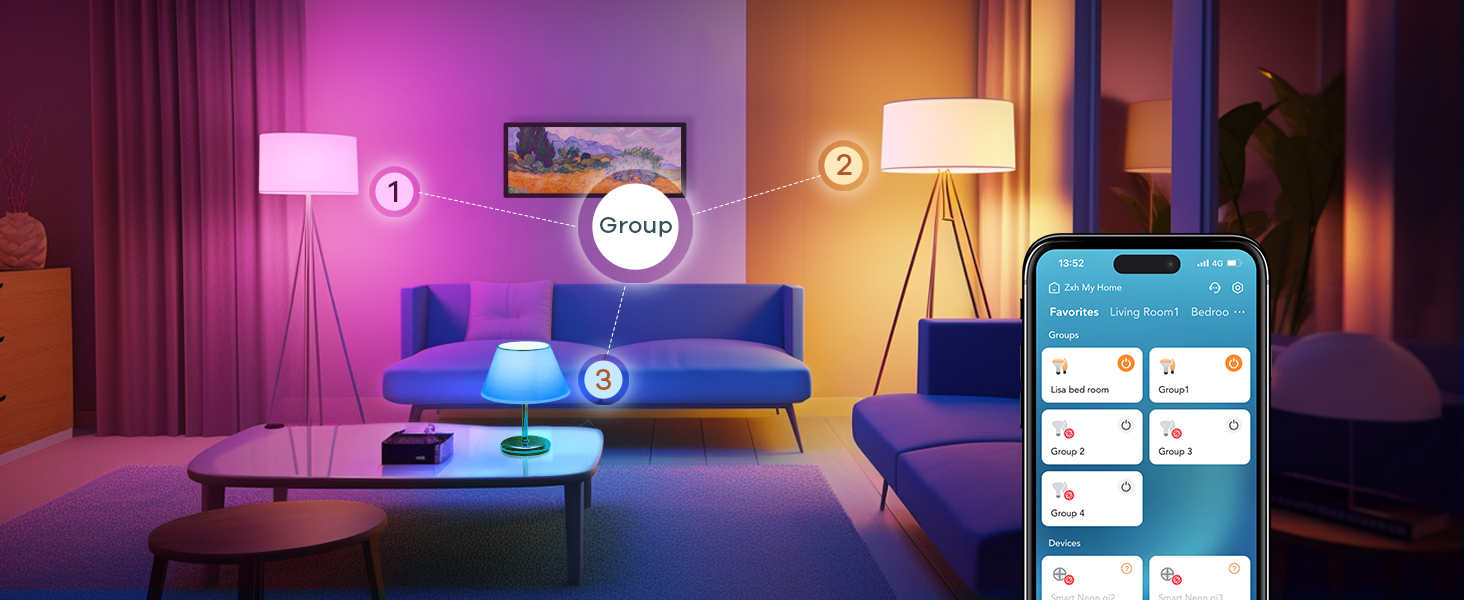
 Group Control
 Time Schedule
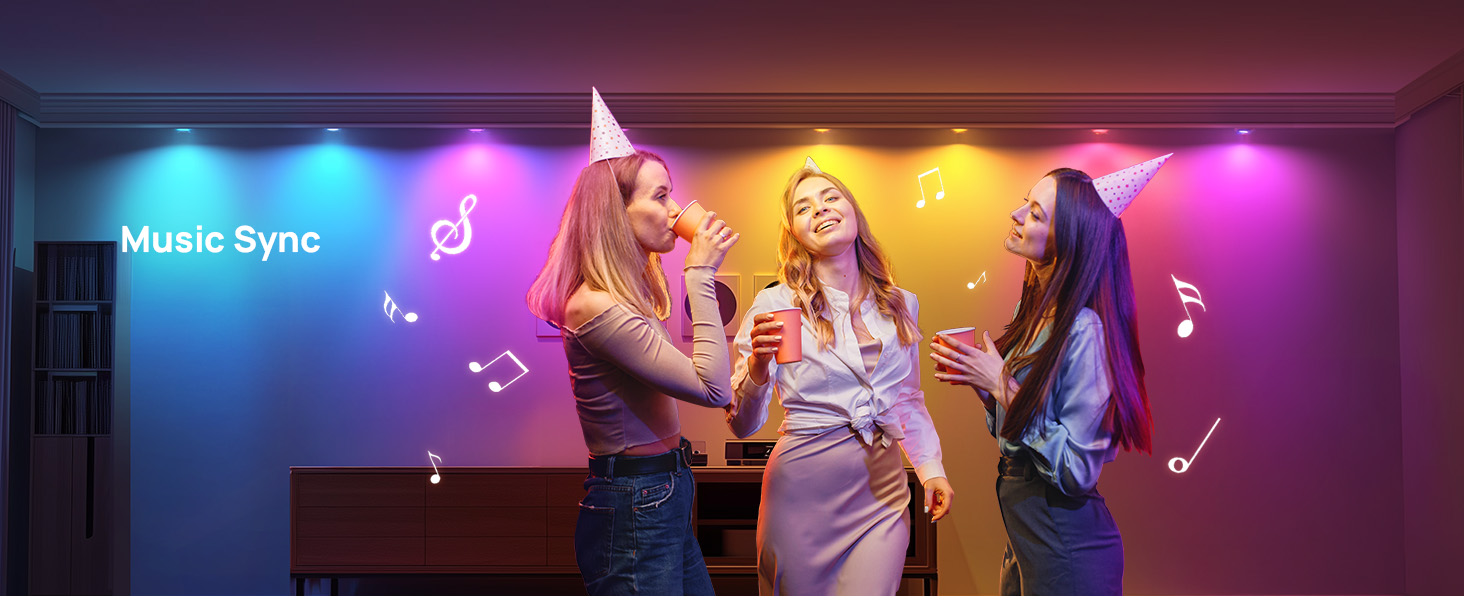
 Music Sync
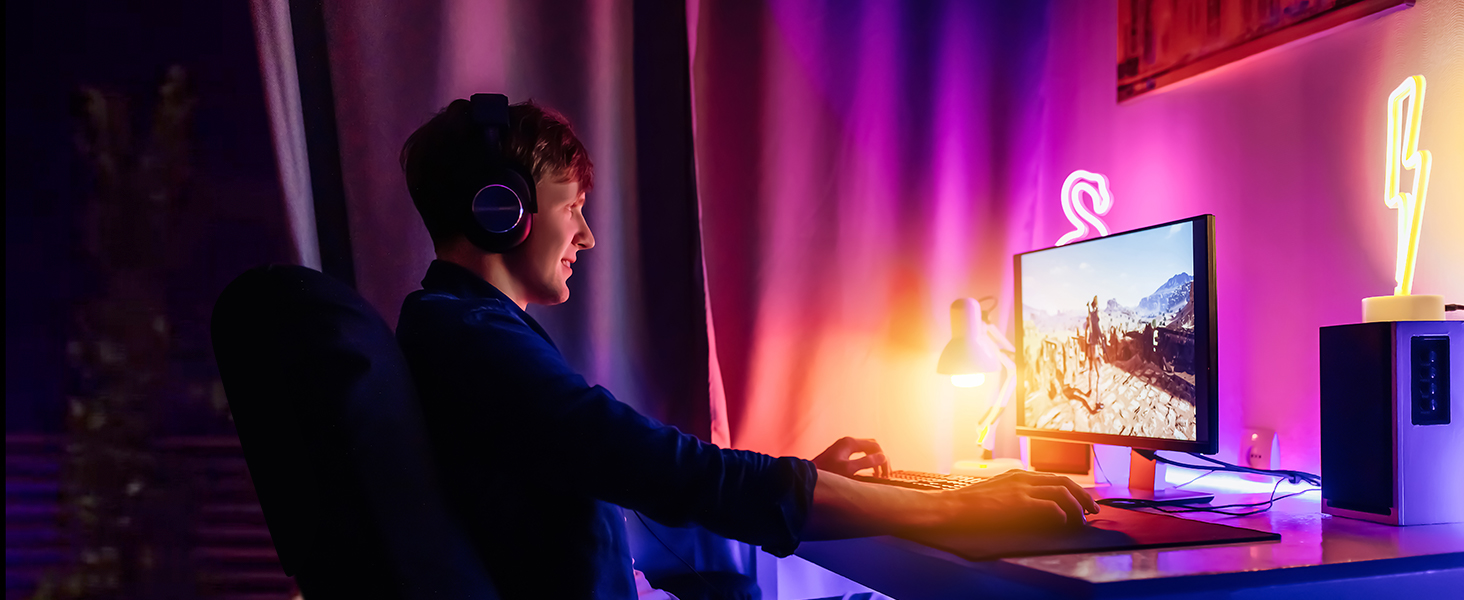 Diverse Scenes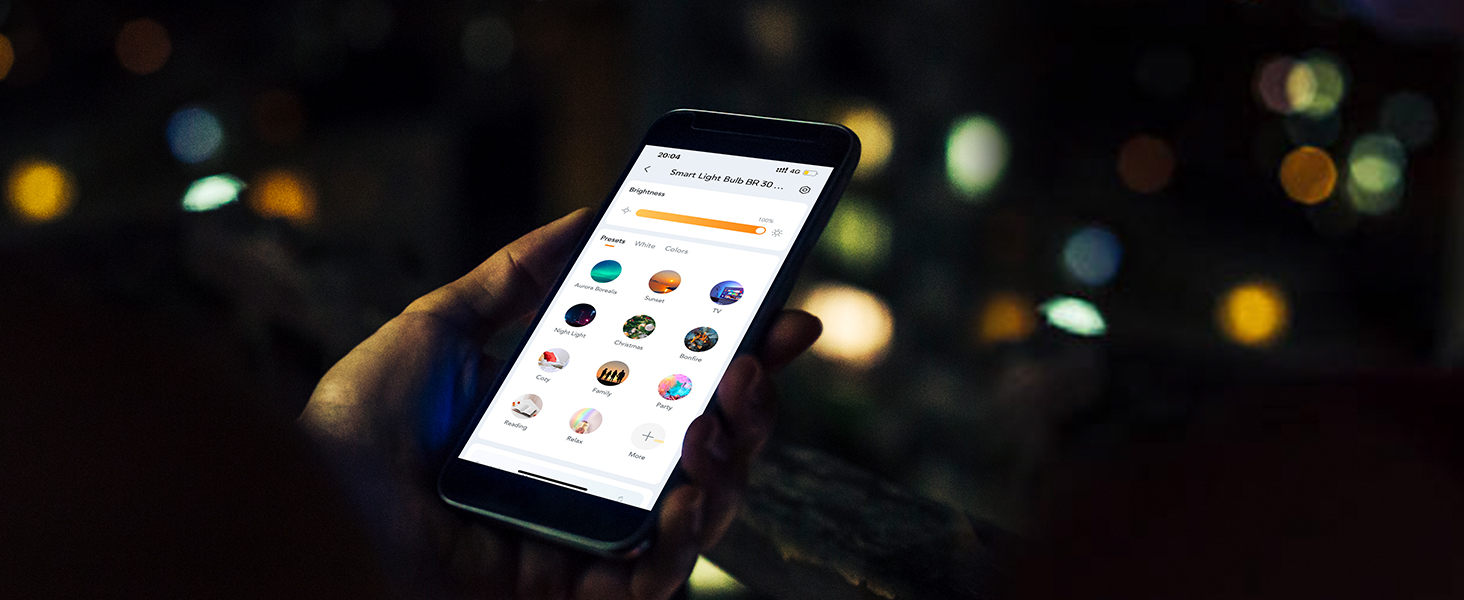



| Light Type | LED |
| Bulb Shape | BR30 |
| Base Type | E26 |
| Wattage | 8W (60W equivalent) |
| Color Temp | 1,800K – 6,500K |
| Dimmable Range | 1% – 100% |
| Brightness | 650 lm |
| CRI | ≥90 |
| Bulb Shape Size | BR30 | BR30 | ST19 | BR30 |
| Wattage | 8 Watts | 14 watts | 8 watts | 9.5 watts |
| Light Mode | RGBTW Dimmable | RGBTW | warm white to cool white | RGBTW |
| Brightness | 650LM | 1200LM | 800LM | 850LM |
| Color Temperature | 1800-6500k | 1800-6500k | 2700K-6500K | 1800-6500k |
| 2.4GhzWi-Fi+BLE | √ | √ | √ | √ |
| Music Mode | √ | √ | √ | √ |
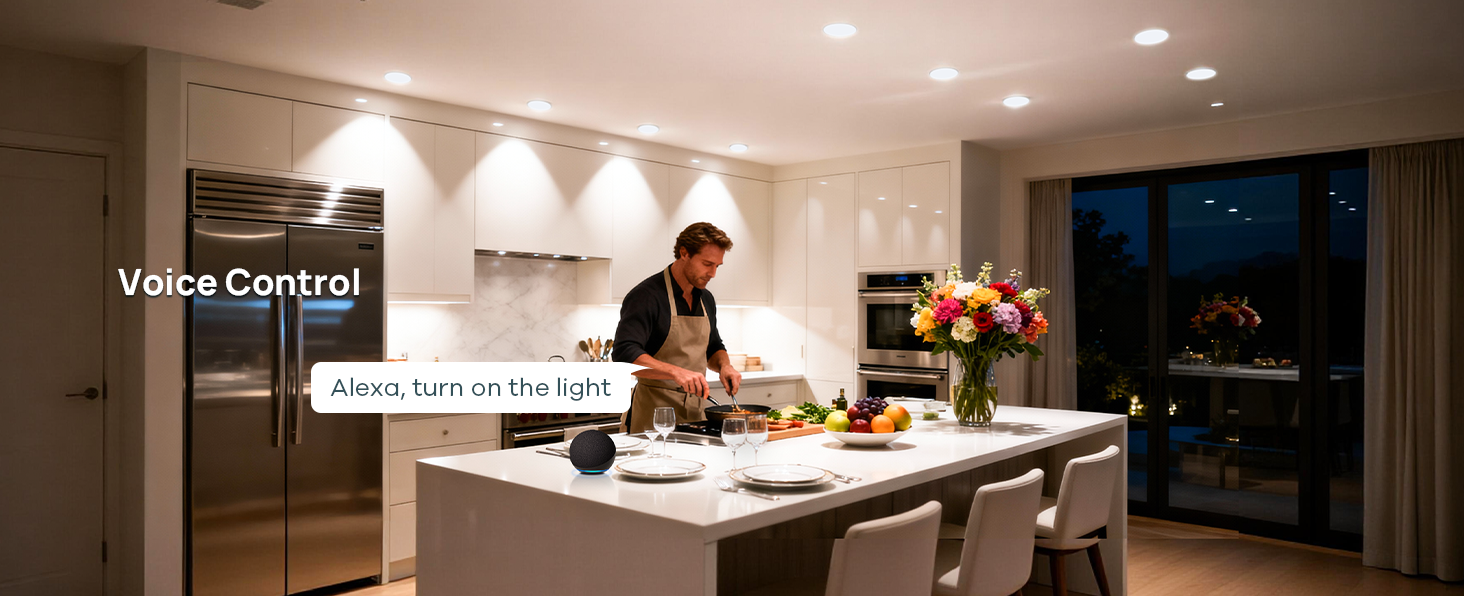
| Timer & Voice & Group Control | √ | √ | √ | √ |
| APP | √ | √ | √ | √ |
| Matter | √ | √ | √ | √ |
| Controller Type | Alexa, Google Home,SmartThings | Alexa, Google Home,SmartThings | Alexa, Google Home, Apple Home, SmartThings | Alexa, Google Home, Apple Home, SmartThings |
| Bulb Shape Size | Wattage | Light Mode | Brightness | Color Temperature | 2.4GhzWi-Fi+BLE | Music Mode | Timer & Voice & Group Control | APP | Matter | Controller Type | ||
|---|---|---|---|---|---|---|---|---|---|---|---|---|
|
Linkind BR30 Matter Smart RGBTW Light Bulbs-650lm
$24.99
| BR30 | 8 Watts | RGBTW Dimmable | 650LM | 1800-6500k | √ | √ | √ | √ | √ | Alexa, Google Home,SmartThings | |
|
Linkind BR30 Matter Smart RGBTW Light Bulbs-1200lm
$49.99
| BR30 | 14 watts | RGBTW | 1200LM | 1800-6500k | √ | √ | √ | √ | √ | Alexa, Google Home,SmartThings | |
|
Linkind Matter Smart Edison Light Bulbs ST19(ST58) - 800 lumens
$30.99
| ST19 | 8 watts | warm white to cool white | 800LM | 2700K-6500K | √ | √ | √ | √ | √ | Alexa, Google Home, Apple Home, SmartThings | |
|
Linkind Matter Smart Light Bulbs Aura BR30-850lm
$69.99
| BR30 | 9.5 watts | RGBTW | 850LM | 1800-6500k | √ | √ | √ | √ | √ | Alexa, Google Home, Apple Home, SmartThings |
Begin with the bulb turned on. Turn the bulb off and back on six times in a row, with an interval between each change of power state between 0.5 and 1.5 seconds. The light will either cycle through red, green, blue, and white, or blink twice, both of which indicate a successful reset.
In your Matter ecosystem of choice, select the option to add a new device and then add your Linkind light by scanning the QR code found on the light or by entering the 11-digit code manually.
If the QR code on the device can not be scanned, you can scan the same QR code from within the instruction manual instead.
Ensure the device running the Apple Home app is connected to a 2.4 GHz Wi-Fi network and the corresponding hub is connected to the same network. If the issue persists, try rebooting the hub, app, and mobile device.
Try controlling the device to see if it responds. If it doesn’t, turn the device off and back on. Allow up to 2 minutes for it to reconnect to the network and then check its status again.
The network may be unstable. Try manually refreshing the app and check its status again.
You can reach support via email at service@linkind.com or call our support team at 1-877-770-5727, Monday to Friday, from 9:00 AM to 5:00 PM.
Ensure your app has been updated to the latest version and then try again.
If it is your first time connecting to this light, or if it has been reset to factory settings, turn the light off and back on. Try connecting within 15 minutes of the light being powered on. If the light has previously been configured, or connected with other hubs or apps, ensure all devices are connected to the same network and that pairing mode has been activated.
Avoid restarting the device during the setup process. After adding the device, wait for the data to synchronize, or manually refresh the app to see the updated name.
This is an issue known to affect a small number of users in certain specific situations. We are working with Apple to resolve this and a fix will be released shortly.