Delivery in 2-5 days (US) | Free shipping over $10
Pickup currently not available

Linkind ET8 Smart TV Backlight with HDMI 2.1 Sync Box


Pickup currently not available
 Delivery in 2-5 days (US) | Free shipping over $10
Pickup currently not available







| Brand | Linkind |
| Color | RGB (Red, Green, Blue) |
| Light Color | Multicolor |
| Special Feature | 2 TV Modes + 4 Game Modes+ 1 Customize Mode, Music Syncing Modes, 25 Music Modes+ 79 Lighting Effects, Supports up to 32 Linkind Devices, Unique Brackets Design, More Expansive Backlighting |
| Material | Acrylonitrile Butadiene Styrene |
| Controller Type | App Control, Voice Control |
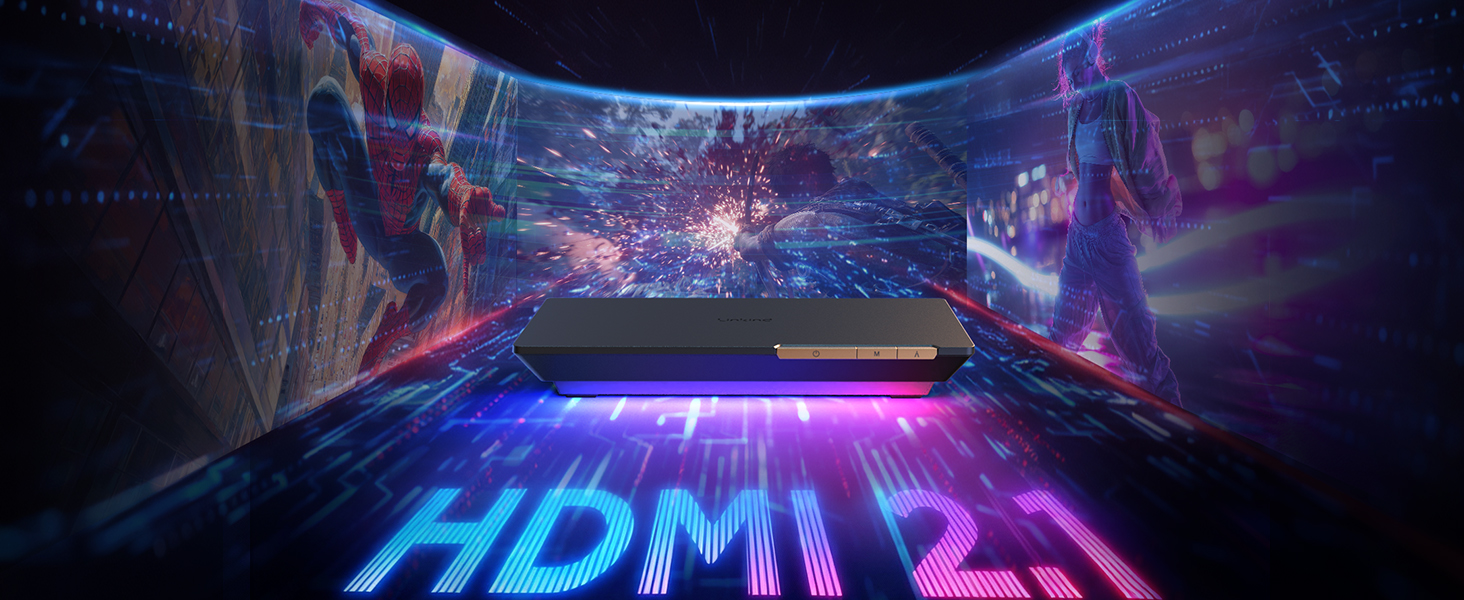
| HDMI IN | HDMI 2.1 |
| Length | 20ft |

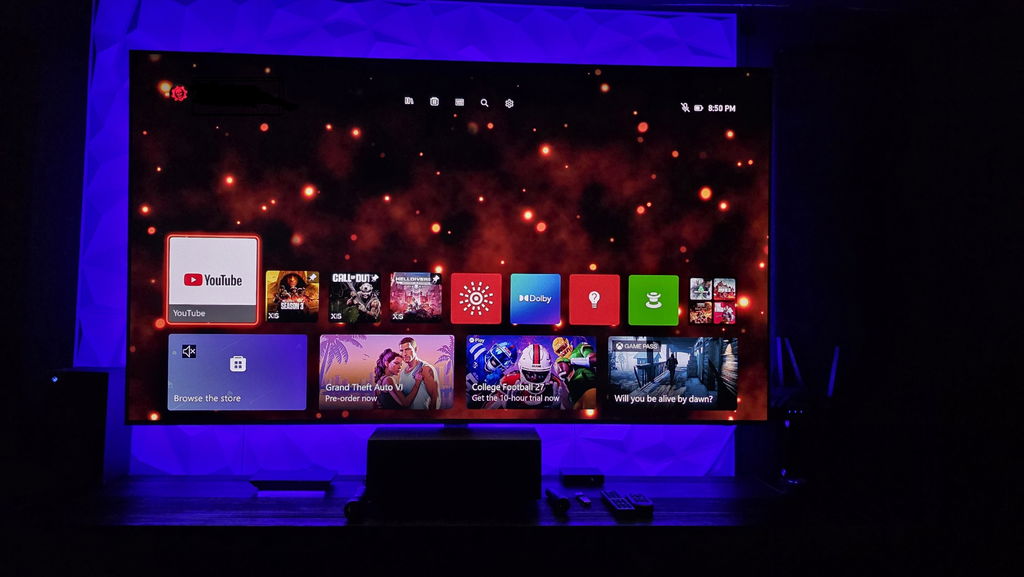
I had been using the govee line for several years and it worked ok, the issue was the camera placement and speed of which the lights would sync with the screen. I wanted a box that did not need a camera. I read about fancy leds and they seemed like the premier go to choice. I stumbled across a few reddit posts of people discussing the pros and cons of various options. Someone mentioned the Linkind ET8 HDMI 2.1 Sync Box and how happy they were with it. I did some digging around and came across a few older videos of the previous version ET6 and had great results. Long story short I ordered the ET8 and hooked my xbox into it and absolutely love this setup. The ET8 is my go to choice for all led backlighting needs from here forward. Bravo to a great product with a reasonable price. Thank you!
Amazing unit that illuminates every system and firestick i have!
Overall I like it, and I have bought a lot of linkind lights for my house. Nice product
I've tried several TV light strips before, but this one is by far the best. Zero latency, corner-to-corner coverage, highly recommend. I use it for both gaming and streaming, and it never disappoints!!!!
Watching movies better, TV modes nice. Wish it was brighter tho in daylight.
The TV light performe good so far.
Works great with Alexa and Google Home. I can change the colors and effects with just my voice. Music sync is so fun and works great during my party. Nice light.
The lighting effects are amazing, making movie nights so much more fun. I can't stop experimenting with different modes.
Setup was super easy, and it works perfectly with my TV. colors are vibrant and the music sync is awesome!Recommended!
Fun lights, music mode is great. A bit of delay sometimes, nothing big.
Very good product, but it took me a little longer than expected to get the HDMI sync box setup correctly. Once it was working, the colors were amazing, but setup instructions could be clearer.
Works ok for movies, app is slow, had to restart it a few times.
I bought this mainly for gaming and honestly it's awesome. When explosions or bright scenes happen, the lights react super fast and the whole wall lights up. Hard to explain, but it makes the screen feel bigger somehow. My friends noticed immediately and we spent a night just trying all the game modes. Totally worth it.
Nice product for my tv
Music mode kinda fun but TV sync is hit or miss. Might be my setup tho.
Very happy with this purchase.
Setup was bit confusing at first. Instructions not super clear. Once done it works great.
works perfectly with my TV
Installed behind my 75 inch TV and the effect is amazing. Watching movies in a dark room feels so immersive. The color sync actually works really well with dark and bright scenes, and the music mode is surprisingly fun too.
Took me maybe 20 minutes to install. The strip bends around the corners pretty easily. Camera-free design is nice. Haven't tried Alexa yet, but the AiDot app seems fine.
I thought this would be gimmicky, but after a few days of using it, I really like it. It changes the vibe of the room, and the corner-to-corner coverage is legit. Sometimes setup was tricky, but once it's done, it's smooth.
Sync works mostly good but sometimes colors slightly off. Still happy.
Colors match the screen fast, no lag. My only complaint is app interface is a bit clunky. Otherwise love it.
Using it on 85 inch TV and coverage is perfect. The wall glow looks really nice and smooth. Makes the whole setup look premium without spending thousands.
It just makes watching TV way more fun. The light reacts to scenes, and even my kids love it for cartoons.
LEDs are brighter than expected. Makes the wall pop, colors vivid. Easy install, no issues.
They play music and the lights flash with the beat. Honestly a hit for family nights.
Watching movies at night is way better. You feel like youre in a little theater.
Setup was actually super easy. Just stick, plug, done. Love that it works with Alexa.
Colors great, reacts fast. Only reason 4 stars is that HDMI plug is short, had to rearrange setup.
We hooked this up for a small party, music mode is sick. Lights flash to beats, everyone asked where I got it.
First I was skeptical but seeing it live is wow. The HDI sync actually works well with every HDMI device I tried.
Its HDMI 2.1 sync box reads video from a connected HDMI device, while LumiSync matches the backlight to on-screen colors. No camera is needed, making it ideal for movies and gaming without a camera mounted on your TV.
No. TV apps running directly on your television cannot provide video to the sync box. To sync streaming content, use an external HDMI streaming device, such as a Fire TV Stick, connected through the box.
Yes. ET8 supports up to 4K at 144Hz or 8K at 60Hz, plus VRR and ALLM. Your available resolution and refresh rate depend on your console or PC, TV, and HDMI connections.
The sync box has one HDMI input and one HDMI output. Connect your console or streaming device to HDMI IN, then connect HDMI OUT to your TV. To use another source directly, switch the device connected to HDMI IN.
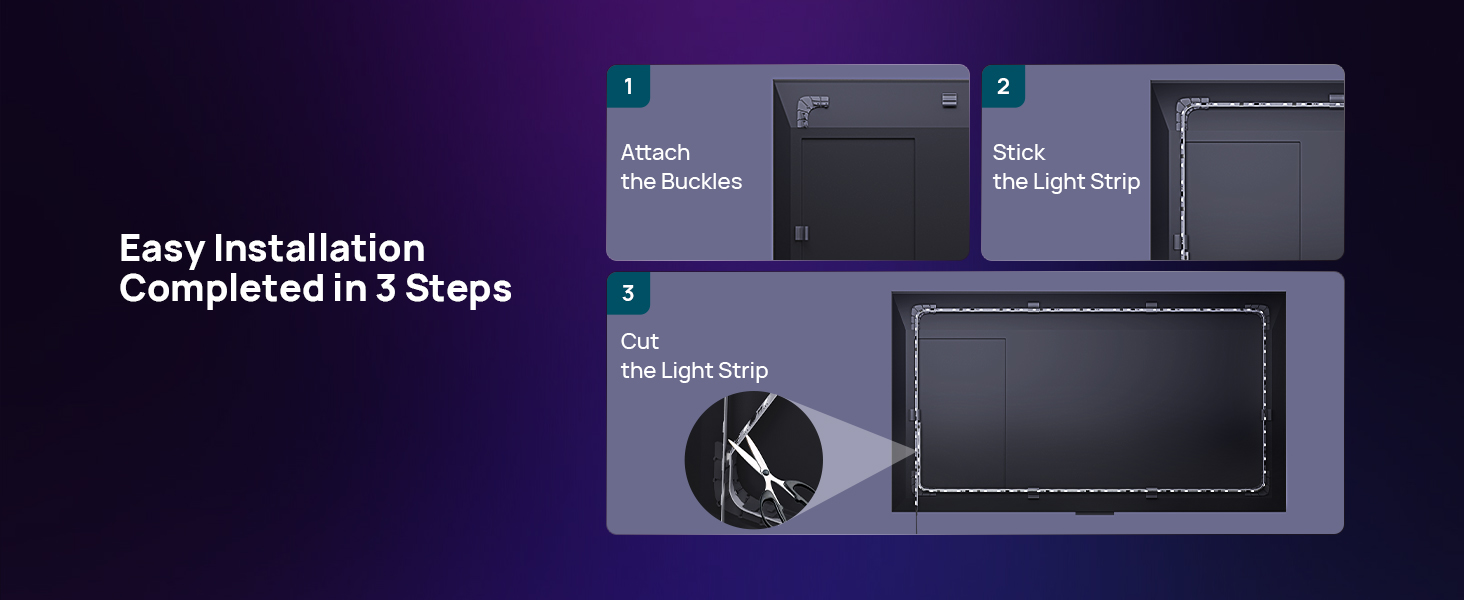
The 20-foot strip fits TVs up to 90 inches; 100-inch TVs are outside its stated fit range. Use the included mounting brackets and trim excess strip only at the designated gold contact lines, following the manual.
Select TV Sync Mode and check that your video source passes through the sync box. In the AiDot app, open Light Positioning and verify the strip length, installation direction, and corner positions.