Delivery in 2-5 days (US) | Free shipping over $10
Pickup currently not available

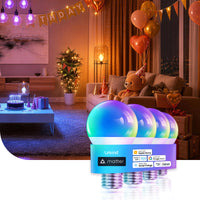
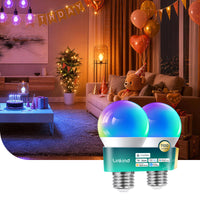
Linkind Matter Smart RGBTW Light Bulb A19-800lm


Pickup currently not available
 Delivery in 2-5 days (US) | Free shipping over $10
Pickup currently not available


| Brand | Linkind |
| Color | Multicolor |
| Dimmable Range | 1% – 100% |
| Beam Angle | 230° |
| CRI | ≥90 |
| Bulb Shape Size | A19 | A19 | A19 | A21 |
| Wattage | 9 watts | 9 watts | 11 watts | 14 watts |
| Light Mode | RGBTW | warm white to cool white | RGBTW | RGBTW |
| Brightness | 800LM | 800LM | 1100LM | 1600LM |
| Color Temperature | 1800-6500k | 2700K-6500K | 1800-6500k | 1800-6500k |
| 2.4GhzWi-Fi+BLE | √ | √ | √ | √ |
| Music Mode | √ | √ | √ | √ |
| Timer & Voice & Group Control | √ | √ | √ | √ |
| APP | √ | √ | √ | √ |
| Matter | √ | √ | √ | √ |
| Controller Type | Alexa, Google Home, Apple Home, SmartThings | Alexa, Google Home, Apple Home, SmartThings | Alexa, Google Home, Apple Home, SmartThings | Alexa, Google Home, Apple Home, SmartThings |
| Bulb Shape Size | Wattage | Light Mode | Brightness | Color Temperature | 2.4GhzWi-Fi+BLE | Music Mode | Timer & Voice & Group Control | APP | Matter | Controller Type | ||
|---|---|---|---|---|---|---|---|---|---|---|---|---|
|
Linkind Matter Smart RGBTW Light Bulb A19-800lm
19.99
| A19 | 9 watts | RGBTW | 800LM | 1800-6500k | √ | √ | √ | √ | √ | Alexa, Google Home, Apple Home, SmartThings | |
|
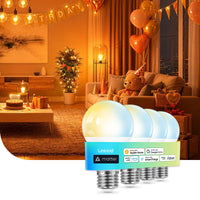
Linkind A19 Matter Smart CCT Light Bulbs - 800lm
$27.99
| A19 | 9 watts | warm white to cool white | 800LM | 2700K-6500K | √ | √ | √ | √ | √ | Alexa, Google Home, Apple Home, SmartThings | |
|
Linkind Matter Smart RGBTW Light Bulb A19 - 1100lm
$25.99
| A19 | 11 watts | RGBTW | 1100LM | 1800-6500k | √ | √ | √ | √ | √ | Alexa, Google Home, Apple Home, SmartThings | |
|
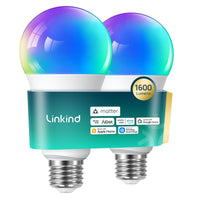
Linkind A21 Matter Smart Light Bulbs - 1600 lumens
$25.99
| A21 | 14 watts | RGBTW | 1600LM | 1800-6500k | √ | √ | √ | √ | √ | Alexa, Google Home, Apple Home, SmartThings |
Yes. It works with Alexa, Apple Home, Google Home, and SmartThings through Matter, allowing compatible voice and app control for power, brightness, colors, and more.
You can use the AiDot app over 2.4GHz Wi-Fi and Bluetooth. For Matter setup, follow the Matter controller requirements of your chosen smart home platform.
It offers 16 million colors, 1–100% dimming, 1,800K–6,500K tunable white, 104 preset scenes, music sync, schedules, group control, and voice control.
It fits compatible A19/E26 fixtures, but it should not be used with traditional wall dimmers or totally enclosed luminaires. Adjust brightness through the app or a compatible smart home platform instead.
Yes. Its 800-lumen output is comparable to a traditional 60W bulb and works well for bedrooms, table lamps, and general everyday lighting. Linkind also offers an A19 RGBTW Matter model with 1100 lumens for higher-brightness needs.
No. The 800lm model uses 9W while producing up to 800 lumens. You can also use dimming, schedules, and energy usage insights to better manage lighting use.

This smart plug is so easy to use. Just scan the QR codes and setup is easy. I'm able to control and schedule my lights which is a requirement when I'm traveling. I like to turn my lights on and off so it looks like I'm home.
Instructions pretty unclear but otherwise these perform well and are a decent deal.