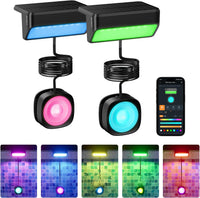
 Delivery in 2-5 days (US) | Free shipping over $10
Pickup currently not available

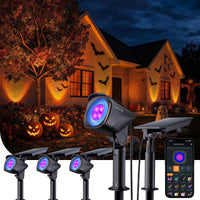
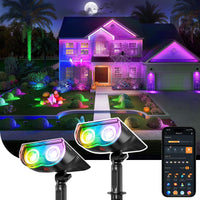
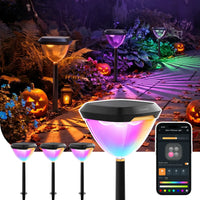
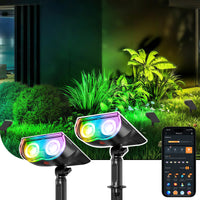
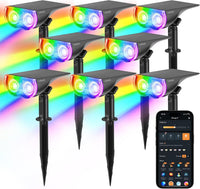
Linkind SL5C Smart Outdoor Solar Spotlight - RGB & Tunable White Landscape Light


Pickup currently not available
 Delivery in 2-5 days (US) | Free shipping over $10
Pickup currently not available


| Power Source | Solar Powered |
| Installation Type | Wall Mount/Ground Insert |
| Control Method | App, Touch, Voice |
| Water Resistance Level | Waterproof |
| Color Temperature | 6500 Kelvin |
| Light Color | Multi-colored |
| Fixture Type | Outdoor Lighting Fixture |
|
Linkind Smart Outdoor Solar Spotlight SL6C
$99.99
| Solar Powered | LED | 32 | RGB+White | 200 lumen | 3.7 Volts | 2 watts | IP66(Storm-Proof) | √ | √ | √ | √ | 1 year | App, Alexa,Google Home,Push Button | |
|
Linkind Smart Outdoor Solar Spotlight SL5C
$29.99
| Solar Powered | LED | 16 | RGB | 150 lumen | 3.7 Volts | 1.55 watts | IP67(Short-Term Submersible) | √ | √ | √ | × | 1 year | App, Alexa,Google Home,Push Button | |
|
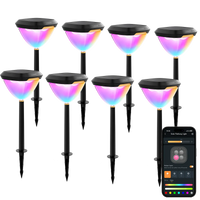
Linkind SP6 Smart Solar Pathway Lights
79.99
| Solar Powered | LED | RGB+Tunable White | 60 lumen | 3.7 Volts | 1.8 watts | IP67(Short-Term Submersible) | √ | √ | √ | Auto Pattern Changing | 3 year | App, Alexa,Google Home,Push Button |

While I do, technically have several complaints. My biggest concern and the reason I'm leaving this review is app functionality that should, but doesn't, allow me to turn them off in a way that they don't turn on when the sun goes down. Instead, every night, when they turn on, I have to open the app and turn them off. If I forget their batteries will drain. Some that get more sun than others will stay on all night until morning, others completely drain their battery. And then don't get enough sun the next day, and the cycle begins again. They aren't really very bright, blah, blah, blah blah blah, I'm not going to get into the details of all that, but just know that. While these aren't the worst out there, I've had worse without question, They're kinda a pain in the butt. And it doesn't seem like they function well from the app. I didn't actually have any problems pairing them. I noticed that some people said they don't pair. Well, I didn't have that problem.But again, yeah, the app is lackluster to say the least. (UPDATE!!) after some back-and-forth, customer service was able to find a workaround, where if I set a time to turn them on, 3:00pm and a time to turn them off (3:00pm) for the exact same time, It will cancel itself out. So, I don't have to turn them off. But I have to do each light individually. I cannot control the group(s) that I created singularly in that way. And then when I want them back on, I have to change each lights settings individually. Because trying to turn them on with the group function at night being outside of the preset time frame.They only stay on for a few seconds and turn back off so...! my opinion of the product itself hasn't changed much. I have to admit customer service did come through eventually in the best way they could obviously, they couldn't redesign the app immediately, and I do believe they took note of the issue based on what they said. They even offered me a full refund. Which naturally I declined, because, as I said in the beginning, my biggest gripe was with the apps lack of functionality. The lights themselves perform as well as one should expect. They were very helpful before it was all said and done. And ultimately, I want the lights.
I just bought a house and these lights are great. I bought 2 sets of 2 and I think I might want more. I had normal white torch lights but they were stolen from my now dead flower beds so I decided to mount these to the front of my house. They provide good color and have a variety of themes to use for holidays and moods. Love that they are solar. They were easy to mount and it took more time setting up the ladder and moving it than the actual install. The app is easy to use and pairing was a breeze. I really like that i can choose to run the lights all with the same theme or as individuals. It will save me time and money when the holidays come. I wish there were more themes but I suppose I can sit outside and create my own. The screws were a bit cheap so be careful screwing them in. I think I stripped one.
These lights work perfectly to light the front of our house in rainbow colors to support all folks. They were super-easy to install and even though not in full-sun, they still remain bright. The app is user-friendly, and I particularly like the option that allows you to set the lights to come on after dark for a time frame of your choosing. You can also simply turn the lights on and off using the app if you prefer that approach. I also like that you can adjust the colors of the lights to so many hues. This was an easy do-it-yourself home project which isn't common since I'm not particularly handy.
Very easy to install; very easy to set up; very easy to configure; very easy to manage; very easy to operate.Material seems sturdy. Battery life seems to be very good. Quality seems to be very good. You can set varied levels of brightness as well. Looks like its really good value for the money.Looks really nice as well!
The company reached out to me after seeing this review to help with one of the problems I was having with the app. Great customer service!! I've updated the review to reflect my incorrect statement.I purchased these to light up 6 trees down my almost 300 foot driveway as well as my house number sign at the road and they are doing the job very well. I think there's room for improvement, but these are a great product nonetheless with excellent value and one of very few options in this product space.Pros:-Great value for the price-Bright for solar lights-White as well as colors-They are smart lights and can be controlled via an app (AiDot)-Adjustable angle-Came with stakes as well as wall mounts for multiple mounting options-Decent water resistance rating (we'll see how these hold up in New England weather)-The fact that these can do Bluetooth mesh and can reach all the way to end of my driveway from the house (you will need to space them no more than 40m/131ft apart)Cons:-Brighter than most solar lights but still not as bright as wired smart lights (these are 120 lumens compared to 1200 lumens for Philips Hue Lily XL) although it's a little unfair to compare considering these are ~1/10th the cost-Connection through the app can be a little slow and finnicky at times-Requires separate hub to connect to home WiFi-Does not connect to Apple HomeKit and there doesn't appear to be a homebridge plugin that supports these-The end of the light's housing is clear and shines bright which is way more noticeable than the object you're trying to light up-The AiDot app is really good but has some limitations that hurt these lights, such as the inability to create a scene with these lights (looks to be reserved for indoor light bulbs) and some limitations on automations you can create. I feel it's worth mentioning, although I'm not docking stars from this product because of it. The fact that you can control these lights from an app and even create automations with triggers is very cool. I just hope they continue to improve the AiDot app.FYI:-These do not have motion sensors like the SL5 which are also sold on Amazon.-The house in the pictures I posted are lit up by some Govee lights and not this product.
Hard to set up .
This was a repeat purchase. I like the lights and going to take these at my moms as she lives out in the country and thought it would be nice to have a little light. I won’t see her for a few weeks I can install them
Excellent product for the price of admission. Highly recommended for your landscaping project and improving your home’s curb appeal.
Best money I've spent in a while! Lights work great and the bonuses their solar operated solutions no ongoing expense. I bought an 8 pack and the light shows that come with the app are great as well.
I put in the Linkind SL5C solar path lights to clean up the lighting around my yard, and for the price they’ve been solid. They charge better than the cheap solar lights I’ve used in the past and stay on most of the night as long as they get decent sun.Install was easy. I just staked them where I wanted and that was it no wiring and no hassle. The AiDot app is honestly the best part. Being able to adjust brightness, colors, and schedules from my phone is something you don’t usually get with solar lights, and it actually works.They’re plenty bright for pathways and garden areas, and the color modes are nice for holidays or when you want a little extra flair. The app’s battery status isn’t always perfectly accurate and the animated effects are more fun than impressive, but for everyday outdoor lighting they do exactly what they’re supposed to.Overall, I’m happy with them and would buy them again.
Easy to useNice bright lights
Holds power for a good bit, roughly 2 1/2 nights at 40% power in partial shade. The app makes it easy to adjust the power levels. You have three options for color: cool white, soft white, and preset color change ups.I wish there was an option to pick different colors. For example, red, green, blue. The light obviously can do them based off of the preset light shows. But there is no color selection available for steady colored light.
I recently purchased the Linkind Smart Solar Spot Lights SL5C (8-pack), and overall, I’m very impressed with the product. The lights that are working perform great-easy to set up, bright, and I really like the ability to switch between cool/warm white and color options. The app and voice control features are a nice bonus and worked smoothly.That said, 2 of the 8 lights did not turn on at all, even after charging and troubleshooting. I’ve reached out to the vendor and am currently waiting to hear back regarding replacements.If those are resolved, this would easily be a 5-star product. Looking forward to seeing how the customer service experience turns out.When contacting Linkind, they provided a list of things to do to resolve this issue. These steps were already performed and still the lights did not turn on. Still waiting on their response.
I have had these light for about 8 months now and I could not be more impressed with how they work. The app is super easy to set up and connect to. And it is really easy to use and adjust the lights however you want them to be. The battery on these lights are great, they last all night long! And the customer service is excellent. I just had one light completely quit working. I contacted customer support and after a few emails they sent me a new one! Can not say enough how impressed with the customer service and the quality of the lights! Highly recommend!
These could be a bit brighter but they serve my purpose in garden. I also don’t get why they say it’s millions of colors when there’s about five or six you can cursor through.
They work fine, great app, setup is a breeze, but the lights are just not bright enough. I have some 50 ft bamboo and it only illuminates like 10 feet and not as bright as I would like. I know there are limitations on solar and battery to consider, but you get what you pay for.
One star knocked off because one stopped working within a few months. 4 stars because the other one WORKS TO THIS DAY ALMOST ALL NIGHT AND WAS ORDERED 6 years ago!!! Crazy lol
Definitely need to charge it before use. Other than that, it's a great product
As advertised easy set up! House and yard looks great
Had to change my review and rating because one light decided to quit working and not hold a charge,bought on October 20th and it's Nov 22 and one already quit working. The amount of time it took going back and forth with them was annoying (dec18) is when I finally sent the old ones back, was upgraded to the motion sensor lights that are nice. Still they are amazing lights, The brightness is amazing and it's spreads out amazingly, the customization is fantastic and will make your house stand out. The size is perfect cause it's not small but not to big and bulky. Once you get the app up going you pair one light and it's super easy to do then you pair the other and you are ready to go. Functionality is extremely easy to figure and only trouble you will have is choosing the right color cause the options are endless.
These are awesome ?? well worth the money!
Son muy bonitas la recomiendo
MPPT technology helps Linkind SL5C capture solar energy more efficiently, improving charging performance by 23.5% and supporting up to 14 hours of nighttime lighting under ideal conditions.
Yes. Linkind SL5C offers 2700K and 6500K white light plus color-changing effects through the AiDot app, so the same lights can handle everyday landscaping and seasonal décor.
Yes. You can group multiple SL5C lights in the AiDot app to synchronize brightness, colors, scenes, and schedules across your yard. Linkind supports up to 32 lights across 8 zones.
Yes. The AiDot app supports dusk-to-dawn automation and custom schedules, so you can have the lights turn on after dark and switch off at a set time to conserve power.